Approve or decline leave requests
Use the Approvals inbox to approve or decline requests, approve low-risk ones in bulk, and follow multi-step approvals.
When someone in your team asks for leave, you get an email, and the request appears in Approvals. The number on Approvals in the menu shows how many requests are waiting for you.
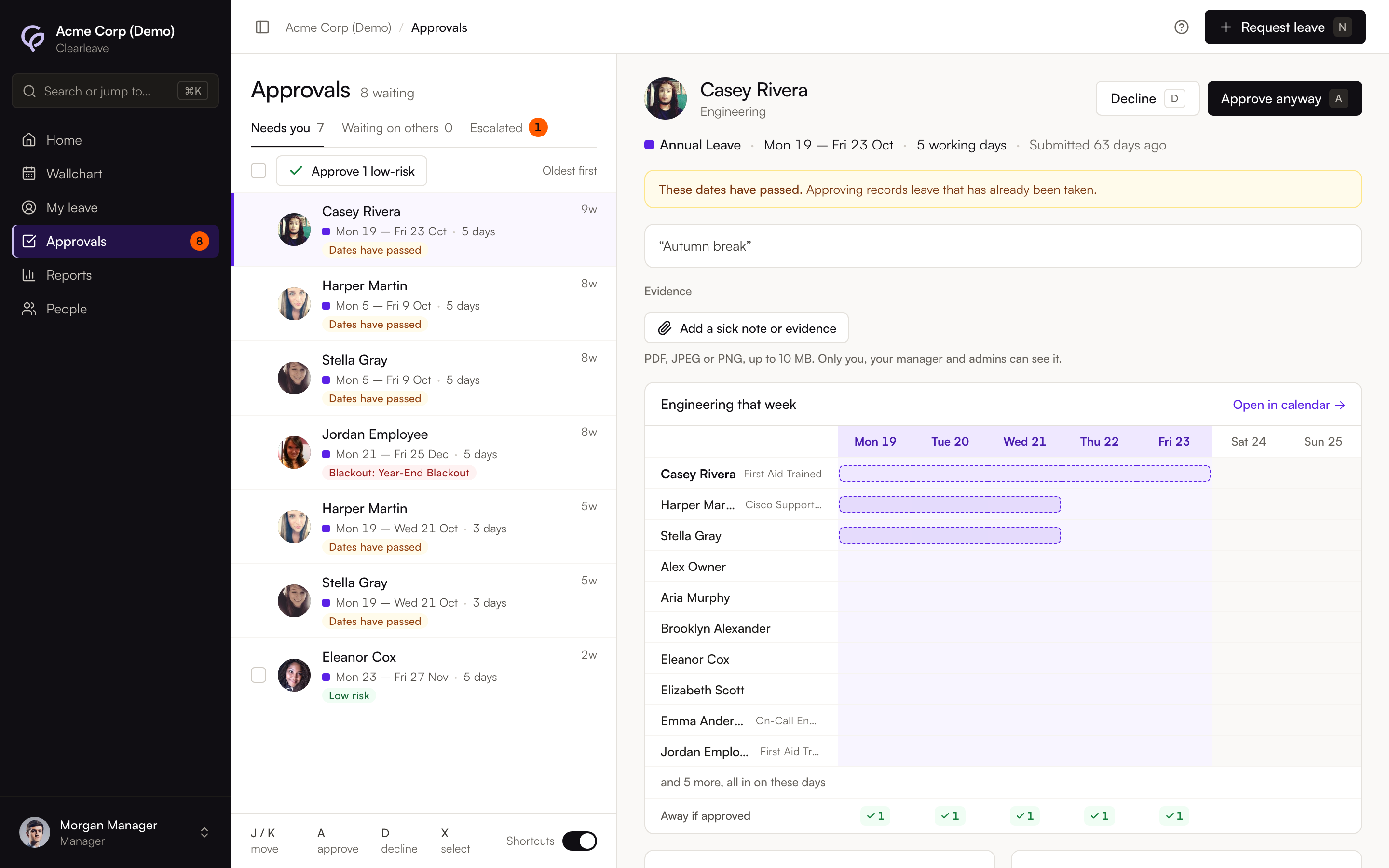
Decide on a request
- 1
Open Approvals
Select Approvals in the menu, or the link in the email. Requests are listed oldest first.
- 2
Select a request
The detail pane shows the leave type, dates and working days, and the person's note. It also shows:
- the checks: team coverage, who else is off, and the person's balance before and after
- a Wallchart for those weeks, with an Away if approved row
- any evidence the person has added
- the approval route.
- 3
Approve or decline
Select Approve, or press A. To decline, select Decline, or press D. Write a Reason, then select Decline request. A reason is required, and the person gets it by email.
After each decision, an Undo message appears. Nothing is sent to the person until that message closes, so Undo really undoes the decision. If you close or leave the page first, the decision is sent straight away.
If someone else decided the request first, or the person cancelled it, you'll see a message saying it was already decided, and it leaves your list.
Press J and K, or the arrow keys, to move through the list. To turn off the single-key shortcuts, use the Shortcuts switch under the list, or Single-key shortcuts in your Profile.
If a request breaks a rule, for example a coverage limit, a blackout date or the allowance, the button says Approve anyway. It says the same when the leave has already started or its dates have passed: the request is marked Already started or Dates have passed. Select Approve anyway, read what approving overrides, then select Approve anyway again to confirm. See Coverage warnings.
A request marked Changed dates is a change to an existing booking. It shows the old dates crossed out. If you decline it, the original booking stays as it was.
Approve low-risk requests in bulk
A request is Low risk when no rule is broken, nobody else is off on those days and the leave hasn't started yet. Select Approve N low-risk to approve them all, or tick the ones you want and approve just those. Only low-risk requests can be ticked. Decide the others one at a time.
The tabs
- Needs you: requests waiting for your decision.
- Waiting on others: requests you're following that are at someone else's step.
- Escalated: requests passed to you because their approver didn't respond in time.
Multi-step approvals
With a workflow, a request can go through several steps, for example the manager and then HR. The detail pane shows each step: who approved it, who it's Waiting on, and steps that were skipped. When you approve your step, the next approvers get an email, and the person is told how far the request has got.
If an approver is away and has delegated their approvals, the person covering can decide instead. See Delegate your approvals. Admins can approve any request. For them, the button shows Approve as admin.