Add and edit people
Add one person and invite them now or later, send invites in bulk, and change details, manager, department and location, for one person or many.
Owners and admins can add and edit people. Managers can view the directory but not change it. To add a whole team from a spreadsheet, see Import people.
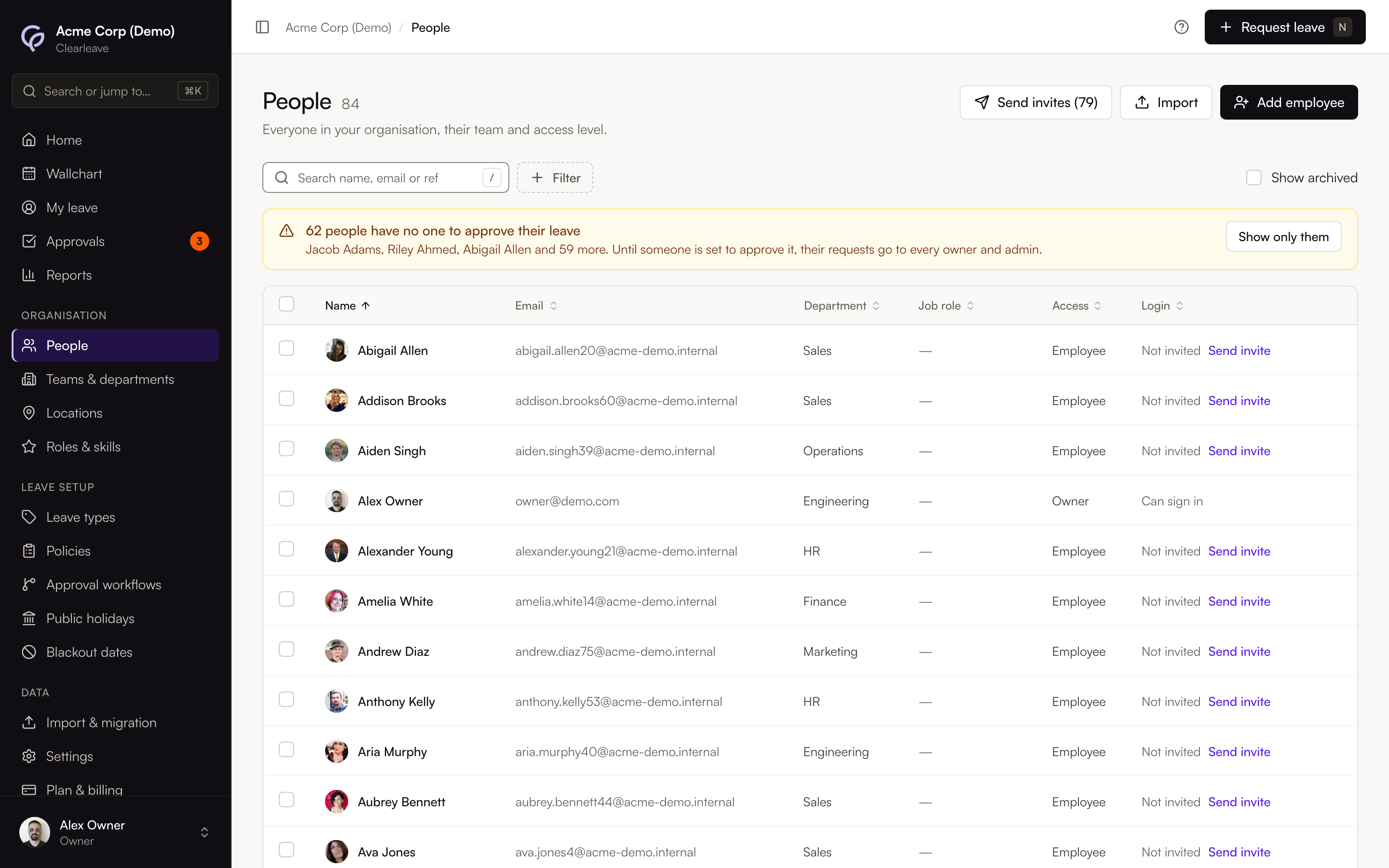
Add one person
- 1
Open People
Go to OrganisationPeople and select Add employee.
- 2
Fill in their details
Enter their first and last Name and Work email. The email is where their invite goes and the address they sign in with. Employee ref is optional: use it for a payroll or HR number.
- 3
Set their working week
Under Working week, untick the days they don't work if they're part-time. Clearleave shows their allowance on that week, for example "Annual Leave: 25 days for a 5-day week → 15 days for 3 days a week this leave year". It's recorded from their Start date (today if you leave it empty).
- 4
Set their team
Pick their Manager (only people with Manager, Admin or Owner access are offered: their manager approves their leave), Location (it decides which public holidays they get) and Department.
- 5
Choose access and coverage
Pick an Access level (Employee, Manager, Admin or Owner). Optionally pick a Job role and tick any Skills: these are used for cover warnings.
- 6
Choose when to invite
Under Invite, keep Email their invite now, or choose Add now, invite later to send it from People when you're ready.
- 7
Save
Select Add employee. With "now", we email them a link to set a password and sign in. The link lasts 7 days.
Each email can only be used once in your company. If the person is already there but archived, restore them from People instead.
Send or resend an invite
The Login column on People shows Can sign in, Invite sent with the date, Invite expired or Not invited. Select Send invite or Resend invite in that column, or from the row's menu.
To invite several people at once, select Send invites (5) at the top of People (everyone not invited yet), or select people and choose Send invites in the bar at the bottom.
Change many people at once
Select people on People with the boxes on the left. The bar at the bottom offers Set manager, Set location, Set department, Send invites and Archive. A manager has to be someone with Manager, Admin or Owner access, and can't be one of the people selected.
If anyone's leave has no one to approve it (no manager, or a manager without approver access), a warning on Home and People names them: their requests would go to every owner and admin. Show only them filters the list to those people, ready for Set manager. The Approver filter does the same.
Edit someone's details
Select their name on People, or choose Edit details from the row's menu. You can change:
- Photo: select the photo or initials at the top of their page to add a profile photo (JPG, PNG or WebP, up to 5 MB). It saves straight away.
- Identity: name, work email (also their sign-in) and employee ref.
- Role and reporting: Access level and Manager. Their manager approves their leave by default.
- Team and coverage: Department, Location (decides which public holidays apply), Job role and Skills.
- Dates: birthday (day and month only), Start date and Leaving date. Only owners and admins can see these.
- Working week: the days they work, from a date, saved on its own with Save working week. See Part-time staff and working patterns.
Change what you need, then select Save changes in the bar at the bottom, or Discard to undo. A new department, location or start date can change which policy applies, and their allowance updates straight away.