Import your people from a CSV
Add up to 500 people at once from a CSV file with their manager and location, check every row before it's saved, and send their invites now or later.
Add your whole team in one go from a CSV file. Do this before you import leave history, because leave is matched to people who are already in Clearleave.
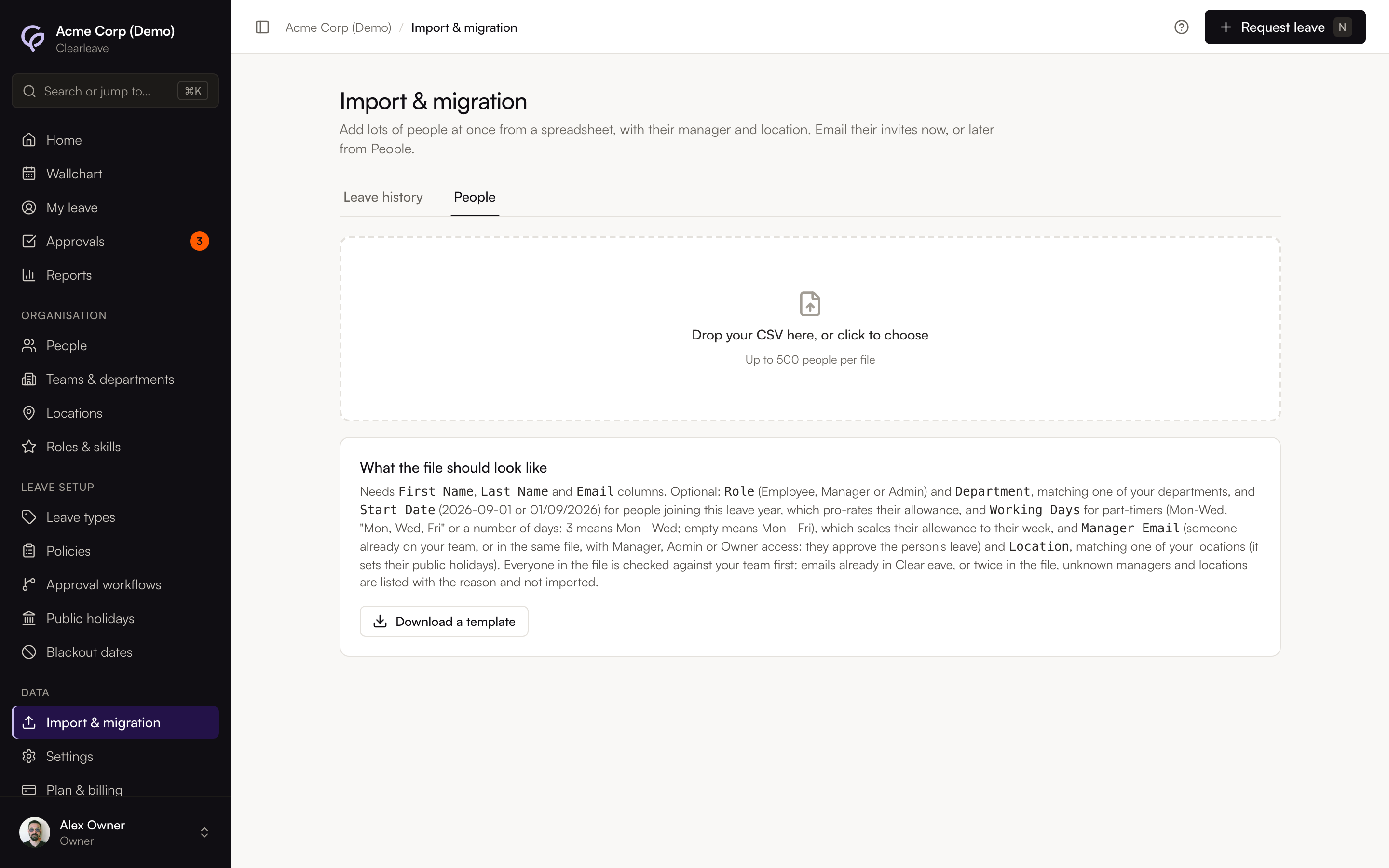
Import the file
- 1
Open the People import
Go to Import & migrationPeople. Select Download a template if you want a file with the right headers.
- 2
Prepare your CSV
One row per person. The file must be a
.csv, with up to 500 people. See the columns below. - 3
Upload it
Drop the file on the page, or click to choose it. Every row is checked against your team before anything is saved.
- 4
Review the check
Each row shows Ready or the reason it needs fixing. Rows with problems are skipped. Select Choose a different file to start again with a corrected file.
- 5
Import
Under the table, choose Email their invites now or Add now, invite later (see Invites below), and, if the file names new departments, tick Create the department not in Clearleave yet (for several, Create 3 departments not in Clearleave yet; the box lists their names). Then select Import 12 people (the button shows how many rows are ready). When it's done, select View people, or Import more for another file.
Columns
Column names aren't case-sensitive.
| Column | Required | Also accepted | What to put |
|---|---|---|---|
First Name | Yes | first_name, firstname, given name | Their first name. |
Last Name | Yes | last_name, lastname, surname | Their last name. |
Email | Yes | email address, work email | Their work email. It's also their sign-in. |
Role | No | Employee, Manager or Admin. Blank means Employee. Shown as Access in the check. | |
Department | No | dept, team, department name | The name of one of your departments. |
Start Date | No | start_date, hire date, date joined, employment start | For people joining this leave year: 2026-09-01 or 01/09/2026. Their allowance is pro-rated from it. |
Working Days | No | working week, working pattern, work days, days per week | For part-timers: Mon-Wed, Mon, Wed, Fri, or a number of days (3 means Monday to Wednesday). Blank means Monday to Friday. Their allowance is scaled to it. |
Manager Email | No | manager_email, line manager email, approver email; also Manager, Line manager or Reports to when they hold an email | The email of the person who approves their leave: someone already on your team, or another row in the same file. They need Manager, Admin or Owner access (in the file, set their Role to Manager). |
Location | No | location name, office, site | The name of one of your locations. It decides which public holidays they get. |
Other columns are ignored.
Invites
Choose when the invite emails go:
- Email their invites now (the default): everyone imported gets an email to set up their login straight away.
- Add now, invite later: they're added with no email. Their Login on People says Not invited. When their managers, locations and allowances are right, select Send invites on People to email everyone not invited yet, or select some people and use Send invites in the bar at the bottom.
Each link lasts 7 days. If a link expires, resend it from People.
After the import
Anyone whose leave nobody is set to approve (no manager, or a manager without approver access) is listed in a warning on Home and People: their requests would go to every owner and admin. To fix several at once, select them on People and use Set manager, Set location or Set department.
Billing
There's no limit on how many people you can have on any plan. Everyone you import counts as a billed person from the day they're added. See How we count people.
Problems the check can show
| Message | What to do |
|---|---|
| First name required / Last name required / Email required | Fill in the missing cell. |
| Invalid email format | Correct the email address. |
| Same email as row 4 | Two rows share an email. Delete one of them. |
| Role must be Employee, Manager or Admin | Use one of those three words, or leave it blank. |
| Start date "…" should be a date like 2026-09-01 or 01/09/2026 | Correct the date, or leave it blank. |
| The start date is more than a year away | Correct the date, or leave it blank. |
| Working days "…" should be like Mon-Fri, Mon-Wed, "Mon, Wed, Fri" or a number of days | Write the days as a range or a list of day names, or the number of days from Monday. |
| … is already on your team | Nothing to do: they're in Clearleave already. If it says archived, restore them from People instead. |
| Over the 500-row limit for one file | Move the extra rows into a second file. |
| No department called "…": they'll be added without one | A warning only. Tick the box under the table to create the department, or set it on the person later. |
| No location called "…" | Add the location under Locations, or correct the name. |
| No one with the email "…" is on your team or in this file | Correct the manager's email, add the manager to the file, or leave it blank. |
| Manager … has Employee access, so can't approve leave | Give them Manager access on People first (or set their Role to Manager if they're in the file), or leave the manager blank. |
| Manager … is archived | Restore the manager from People, or use another manager's email. |
| Their manager (row …) can't be imported yet | Fix the manager's own row first. |
| Someone can't be their own manager | Leave Manager Email blank for that person. |
| Manager email "…" isn't an email address | Correct the email in Manager Email, or leave it blank. |
| Manager "…" isn't an email address, so it's left out | A warning only. Use a Manager Email column with their email. |
If you choose a file that isn't a CSV, you'll see Please choose a .csv file. Save it from your spreadsheet as CSV and try again. A file with nothing under its header row shows No rows found.