Leave types
Add or edit leave types: days or hours, paid or unpaid, whether they use an allowance, who can see them and their Wallchart colour. Deactivate old ones.
A leave type is a kind of time off people can book, such as annual leave or sick leave. Your company starts with the usual ones, which you can change.
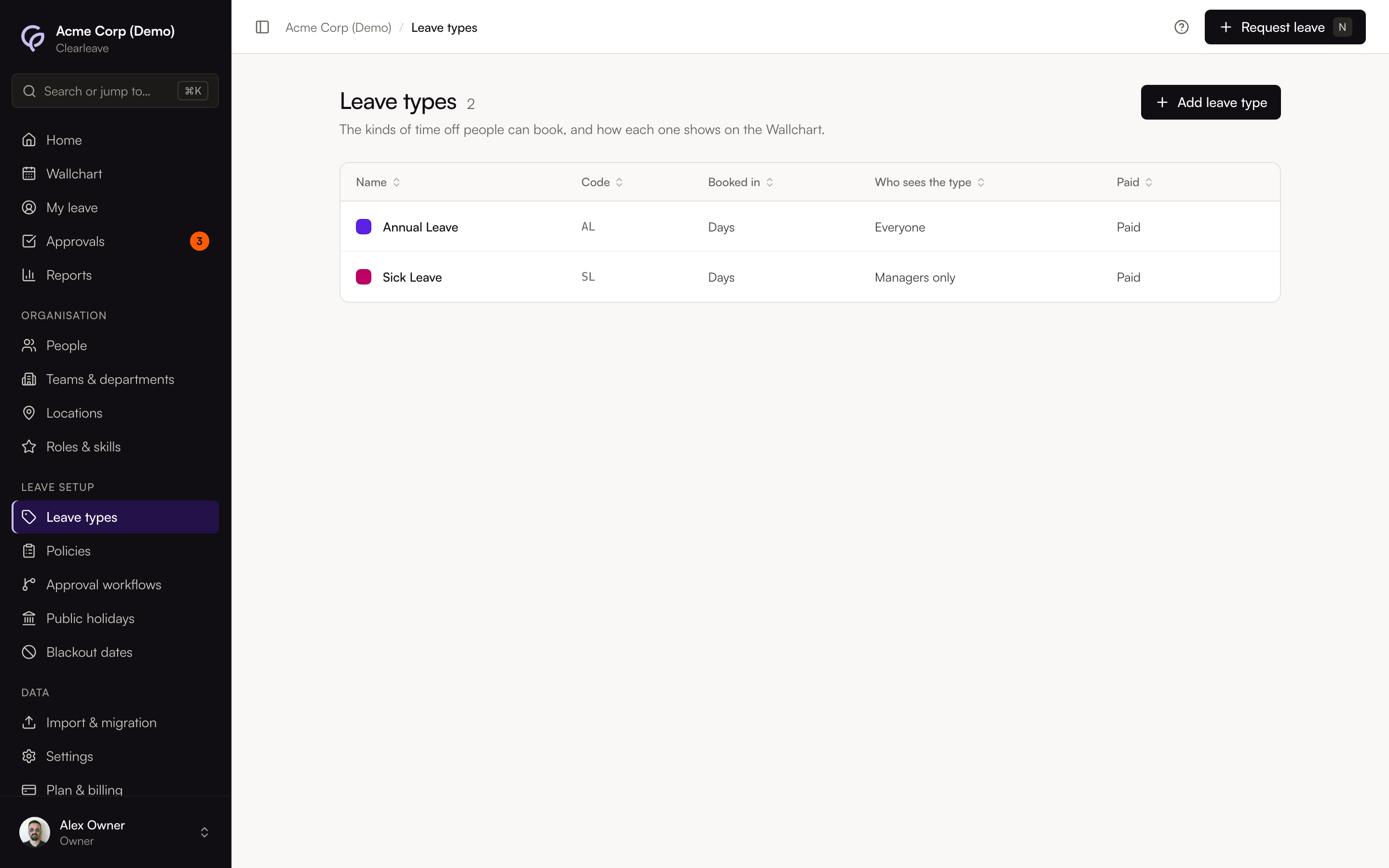
Add a leave type
- 1
Open Leave types
Go to Leave setupLeave types and select Add leave type.
- 2
Name it
Enter a Name and a short Code, for example "Study leave" and "STU". Both must be unique.
- 3
Choose how it's booked
Under Booked in, choose Days or Hours.
- 4
Choose who can see it
Under Who can see the type, choose Everyone or Managers only. Managers only hides the reason, such as sickness, from colleagues: they see "Away".
- 5
Paid or unpaid, and colour
Turn Paid leave on or off. This is shown on reports and exports. Turn Uses up an allowance on for leave that comes off a yearly allowance, like annual leave, and off for leave that's only recorded, like sickness or unpaid leave. Pick a Colour on the Wallchart or choose a custom one, or leave it on Automatic to take a colour from the name.
- 6
Save
Select Add leave type.
Give it an allowance
A leave type on its own has no allowance. To set how many days people get, the notice they must give and other booking rules, create a policy for it on Leave setupPolicies. See Policies and allowances.
The policy also sets Ask for evidence after: when a request is longer than that many days, the approver and the employee are told evidence, such as a doctor's note, is needed. It doesn't stop the request.
The starting leave types
| Leave type | Comes off an allowance | Who can see it | Paid |
|---|---|---|---|
| Annual Leave | Yes | Everyone | Paid |
| Sick Leave | No | Managers only | Paid |
| Parental Leave | No | Everyone | Paid |
| Compassionate Leave | No | Everyone | Paid |
| Unpaid Leave | No | Everyone | Unpaid |
Companies in South Africa start with a different set. See South Africa (BCEA).
If your company has no leave types at all, the empty Leave types page offers Add the standard types.
Edit a leave type
Choose Edit from its menu, change what you need and select Save changes. Booked in and Uses up an allowance can't change once the type has been booked or has allowances, because that would change what the numbers already recorded mean: create a new leave type instead.
Change the colour
Select the colour square next to a leave type in the list and pick a new one.
Deactivate a leave type
Choose Deactivate from its menu and confirm. People can't book it any more. Existing requests and balances stay as they are.