Book leave
How to request a full day or a half day off, read the checks before you send, and what happens next.
You book every kind of leave from one form. It shows what the request will cost and who will approve it before you send it.
- 1
Open the request form
Select Request leave in the top bar, or press N. (If N does nothing, turn on Single-key shortcuts in your Profile.) The button is also on Home and My leave. On the Wallchart, you can drag across your own row to open the form with those days filled in.
- 2
Choose a leave type
Each leave type shows how many days you have left, or No limit if it doesn't come out of an allowance.
- 3
Pick your dates
Select the first day, then the last day. Weekends, your days off and public holidays for your location aren't counted. The calendar also marks colleagues in your team who are off, and any blackout dates.
- 4
Add half days if you need them
Select Adjust half days to set any day to Full, AM or PM. For a single day, choose Full day, Morning or Afternoon. If your policy only allows full days, these options don't appear.
- 5
Add a note and send
The Note is optional and goes to your approver. Select the request button, for example Request 3 days (or Book 3 days (auto-approved)), or press Ctrl + Enter (⌘ + Enter on a Mac).
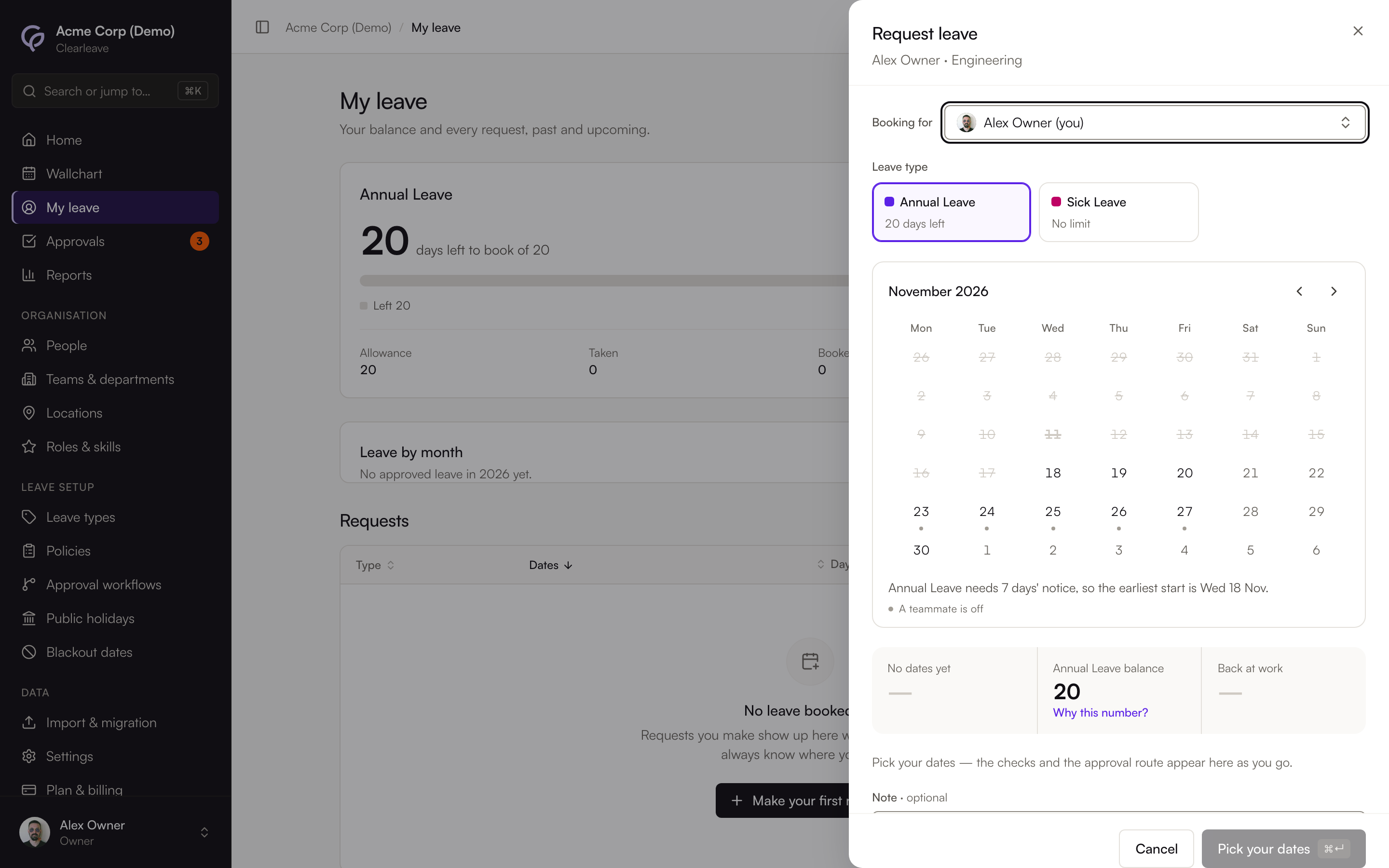
Read the summary and the checks
Before you send, the form shows:
- The days: how many working days the request uses.
- The balance: your balance now and what it will be after this request, counting any requests still waiting for approval. Dates in another leave year are checked against that year's allowance. Select Why this number? to see the full ledger.
- Back at work: the day you're due back, and any public holidays the request skips.
- Before you send: checks for blackout dates, leave you already have on those days, notice, allowance, colleagues who are also off and team coverage. A red check stops you from sending. An amber check is a warning. You can still send the request, and your approver sees the warning too. You can't book the same day twice: change or cancel the other request first.
- Who approves: the person or people who will approve your request, in order. If the request will be approved automatically, the form says Auto-approved.
What happens next
If the request needs approval, you'll see a message saying who it was sent to, and you'll get an email when they decide. If it's auto-approved, it goes on the Wallchart straight away. Select Undo on the message to withdraw the request.
You can follow every request, and its status, in My leave.