Use the Wallchart
See who's off and when, filter the Wallchart, and understand the colours, dashed bars and private leave.
The Wallchart shows everyone's approved and pending leave in one place. Open it from Wallchart in the menu.
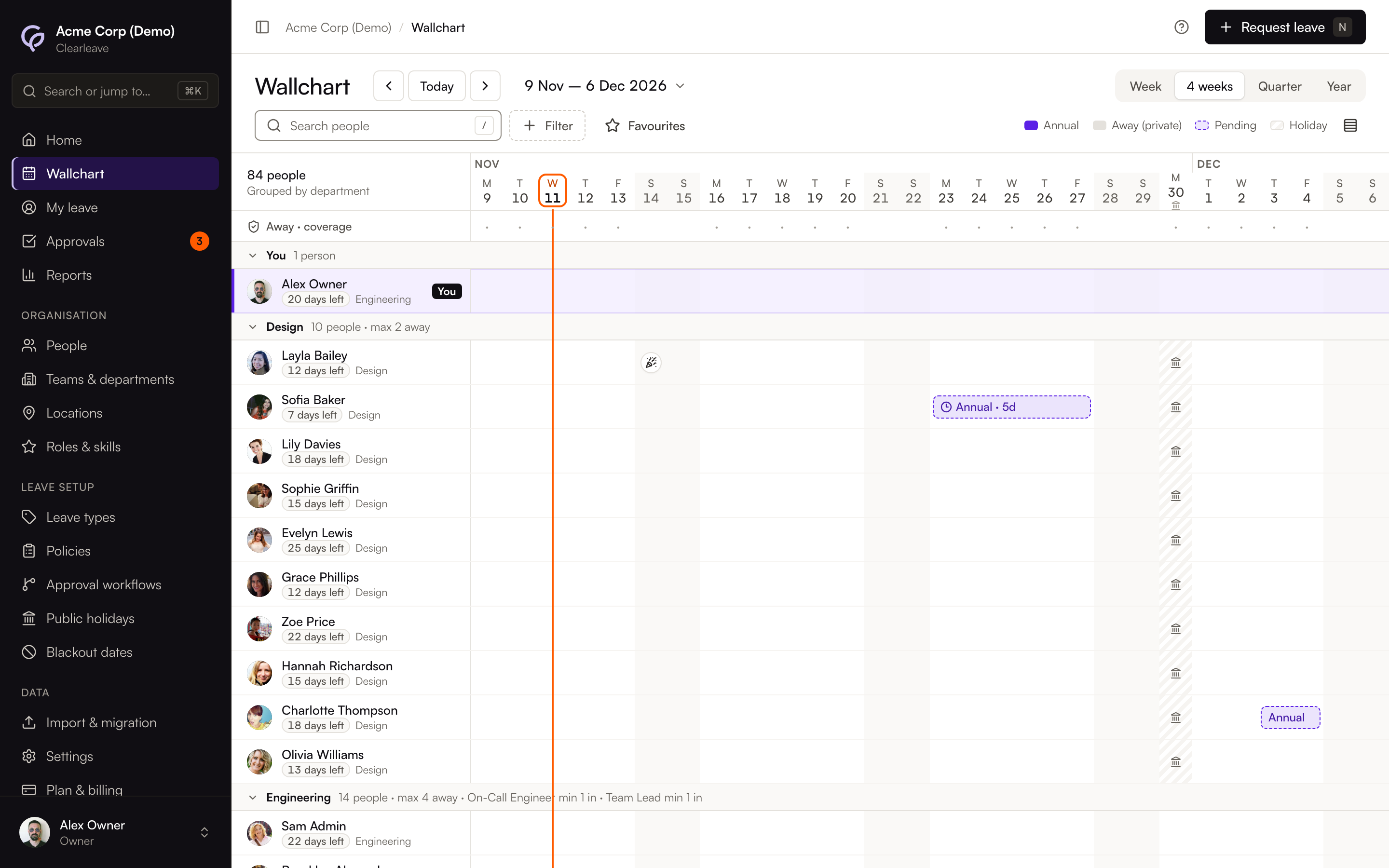
Move around
- Use the arrows, or Today, to move between periods. Select the period name to jump to a month.
- Switch the view between Week, 4 weeks, Quarter and Year. The Year view shows each person's weeks as a heatmap instead of bars.
- On a phone, the Wallchart shows a week strip and a list of who's off.
Find people
- Search people finds anyone by name.
- Filter by Department, Location, Role or Skill. A filter only appears if your company uses it.
- Select the star next to someone's name to add them to your favourites. Favourites shows only them.
- Use the rows button to switch between compact and comfortable rows.
People are grouped by department, in alphabetical order. You and your favourites are pinned at the top. Select a group's header to collapse or expand it. If a department has a limit on how many people can be away, its header shows it, for example "max 4 away".
Read the bars
| What you see | What it means |
|---|---|
| A solid bar in a leave type's colour | Approved leave |
| A pale bar with a dashed border | A request that's still waiting for approval |
| A grey bar labelled Away | Leave of a private type |
| Hatched days | Public holidays |
| A red-tinted column with a red line under the date | Blackout dates, when leave can't be booked |
The key above the chart shows the colours of the main leave types on screen. On a narrower screen, select Legend to open it. The standard colours are chosen so they stay distinct if you're colour-blind, and pending leave is marked by its dashed border as well as its colour. Hover over a bar to see the dates, the number of days, whether it's a morning or afternoon, and who approved it.
The Away · coverage strip at the top shows how many people are away each day, and whether the team's coverage rules hold. See Coverage warnings.
What you can see about colleagues
Some leave types, such as sick leave, can be set as private. For a private type:
- You see your own leave in full.
- Colleagues see a grey Away bar, with the note "The leave type is private". They don't see the type's name or colour.
- Managers see the full details for the people they manage. Owners and admins see everything.
Notes on requests aren't shown on the Wallchart.
Book from the Wallchart
Drag across your own row to open Request leave with those days filled in. Hover over your own leave to select Change dates or Cancel leave. Managers can also book, change and cancel leave for the people they manage this way. You can't drag to book in the Year view.